17/10/2026
What’s new in OnInOff: more control, more precision and a smoother experience
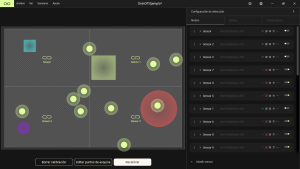
Main Design Changes
A fresh, more intuitive design
We’ve redesigned OnInOff to put everything within easy reach: a cleaner, clearer interface that lets you set up and manage your sensors faster and more easily.
New sensor design
We’ve refreshed the sensor design so you can tell at a glance which sensors are enabled and which are disabled.
Canvas zoom
You can now zoom in and out of the canvas simply by using your mouse scroll wheel.
Create a support ticket
In the Help menu (top menu bar) you’ll find the new Create Support Ticket option. It takes you to a web page where you can submit a support request or report any issue.
Automatic canvas adjustment
The canvas view now automatically adjusts to show all existing elements. If a sensor or trigger ends up outside the visible area, the view expands on its own so you never lose sight of it.
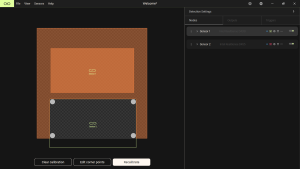
Sensor, Trigger and Output List Changes
Reorder with drag-and-drop
You can now organize sensors, triggers and outputs however you like by dragging and dropping them into place.
Individual sensor calibration
Each sensor now has its own calibration checkbox, so you can calibrate or uncalibrate it independently. A green checkbox means the sensor is selected for individual calibration, while a red checkbox means it’s selected for individual uncalibration.
Visual feedback when enabling or disabling
The sensor toggle button now blinks while the sensor is being enabled or disabled, so you always know the operation is in progress.
Remove sensors that are no longer detected
We’ve added a new Delete button (trash icon) that lets you remove sensors the application no longer detects (Unknown Sensors).
New output: Hand Movement (Beta)
Introducing a new output that lets you control the mouse cursor with a single hand, tracked by a LiDAR sensor. It’s ideal for giving presentations without needing any additional input device.
To click: remove your hand and place it back in the same spot of the detection area.
To double-click: remove your hand and place it back twice.
As this feature is in beta, you may experience some limitations or unexpected behavior while we continue to improve it.
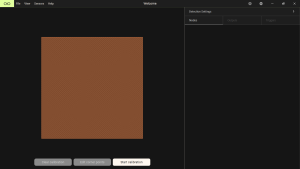
Sensor Preferences Window Changes
Resizable window
The preferences window can now be resized and maximized, making it more comfortable to view and configure all available parameters.
Real-time scan progress
During scanning, a progress bar shows how much of the scan has been completed. Informational text also describes the current operation and the active step at every stage.
Cancel the scan anytime
The scanning process can now be cancelled at any time.
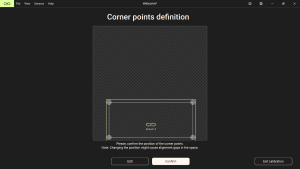
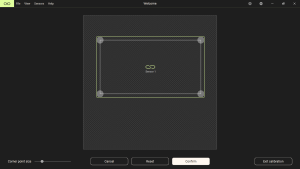
Edit Corner Points View Changes
Zoom for more precise editing
You can now zoom in and out with your scroll wheel to edit sensor corner points more easily and precisely.
Undo with Ctrl + Z
Made a mistake? Use Ctrl + Z to undo changes made to corner points.
Adjustable point size
A new slider lets you adjust the size of the corner points displayed in this view.
Reset and Restore Automatic
The new Reset button returns all corner points to their original positions. The Restore Automatic button brings back the automatically generated configuration that existed before manual editing.
Save your progress at any time
You can now save your changes in the Edit Corner Points view whenever you want, so you can pick up where you left off without losing any of your work.
These improvements are just part of the ongoing work to make OnInOff more intuitive and powerful. Update the application to start enjoying all the new features, and if you have any questions or suggestions, feel free to reach out through the new Create Support Ticket option. We’d love to hear from you!
Ready to unlock the potential of interactive spaces? Contact us to discover what OnInOff can do for your project.